Tutorials

Learn SuperTemplates

Step-by-step guides to master every feature — from the editor to AI extraction to building reusable templates.
Part 1

Main Editor

Editor Overview

The SuperTemplates editor is your command center for creating Jira tasks at scale. It combines a familiar spreadsheet-like interface with powerful AI capabilities.

1

Open the editor

Navigate to your Jira project and click the SuperTemplates icon in the top navigation bar. The editor opens as a full-screen panel overlaying your board or backlog view.

editor-overview-step-1.png
2

Understand the layout

The editor has three areas: the task list on the left, the detail panel on the right, and the toolbar at the top. Each task row shows its type, summary, assignee, and story points at a glance.

editor-overview-step-2.png
3

Toggle between views

Switch between List view (flat task list), Tree view (hierarchical with epics → stories → subtasks), and Board view (kanban-style columns) using the view switcher in the toolbar.

editor-overview-step-3.png

Pro tip: Press Ctrl+/ (or Cmd+/) at any time to see all available keyboard shortcuts.

Creating Tasks Manually

Sometimes you need to add tasks one by one. The editor makes manual creation fast with inline editing and smart defaults.

1

Add a new row

Click the + button at the bottom of the task list, or press Enter on the last row. A new blank task appears with your project's default issue type pre-selected.

editor-task-creation-step-1.png
2

Set the issue type

Click the type icon to switch between Epic, Story, Task, Bug, or Sub-task. The hierarchy automatically adjusts — drop a Story under an Epic and it becomes a child.

editor-task-creation-step-2.png
3

Fill in details inline

Tab through fields to set summary, description, assignee, story points, priority, labels, and custom fields. Each field supports autocomplete from your Jira project configuration.

editor-task-creation-step-3.png
4

Use quick-fill shortcuts

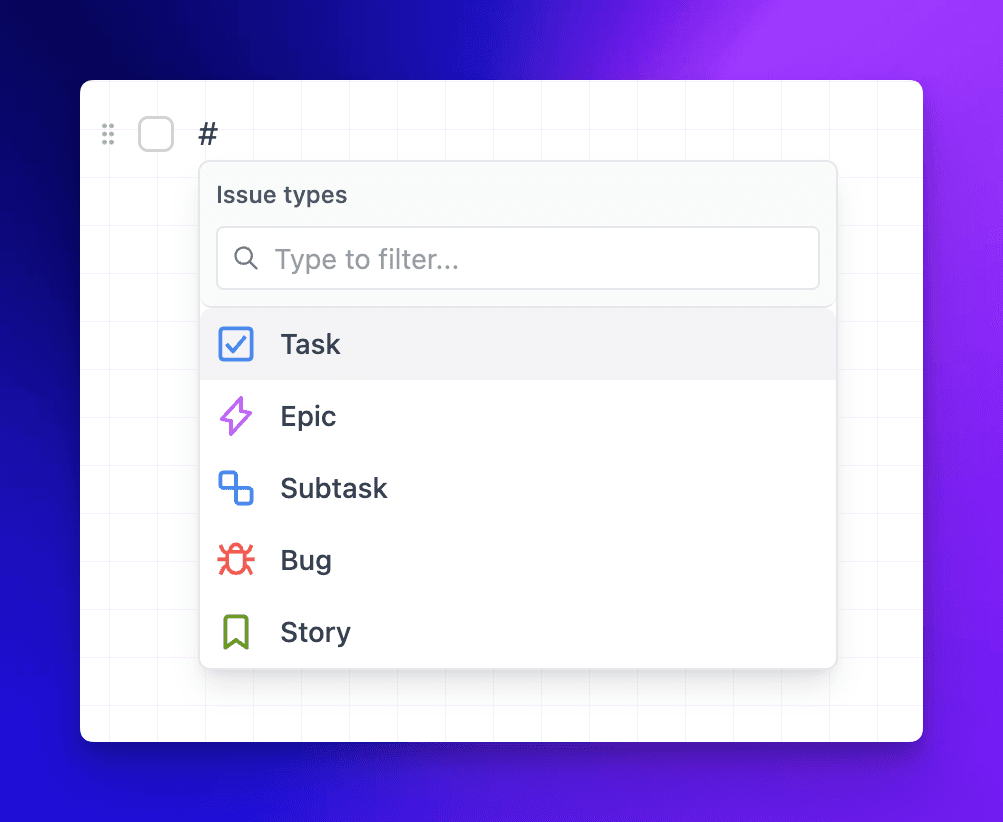
Type @ to assign, # to set labels, ! to set priority, and ^ to set story points. These work directly in the summary field for rapid entry.

editor-task-creation-step-4.png

Pro tip: Hold Shift and click two rows to select a range, then bulk-edit any field across all selected tasks.

Hierarchy & Drag-and-Drop

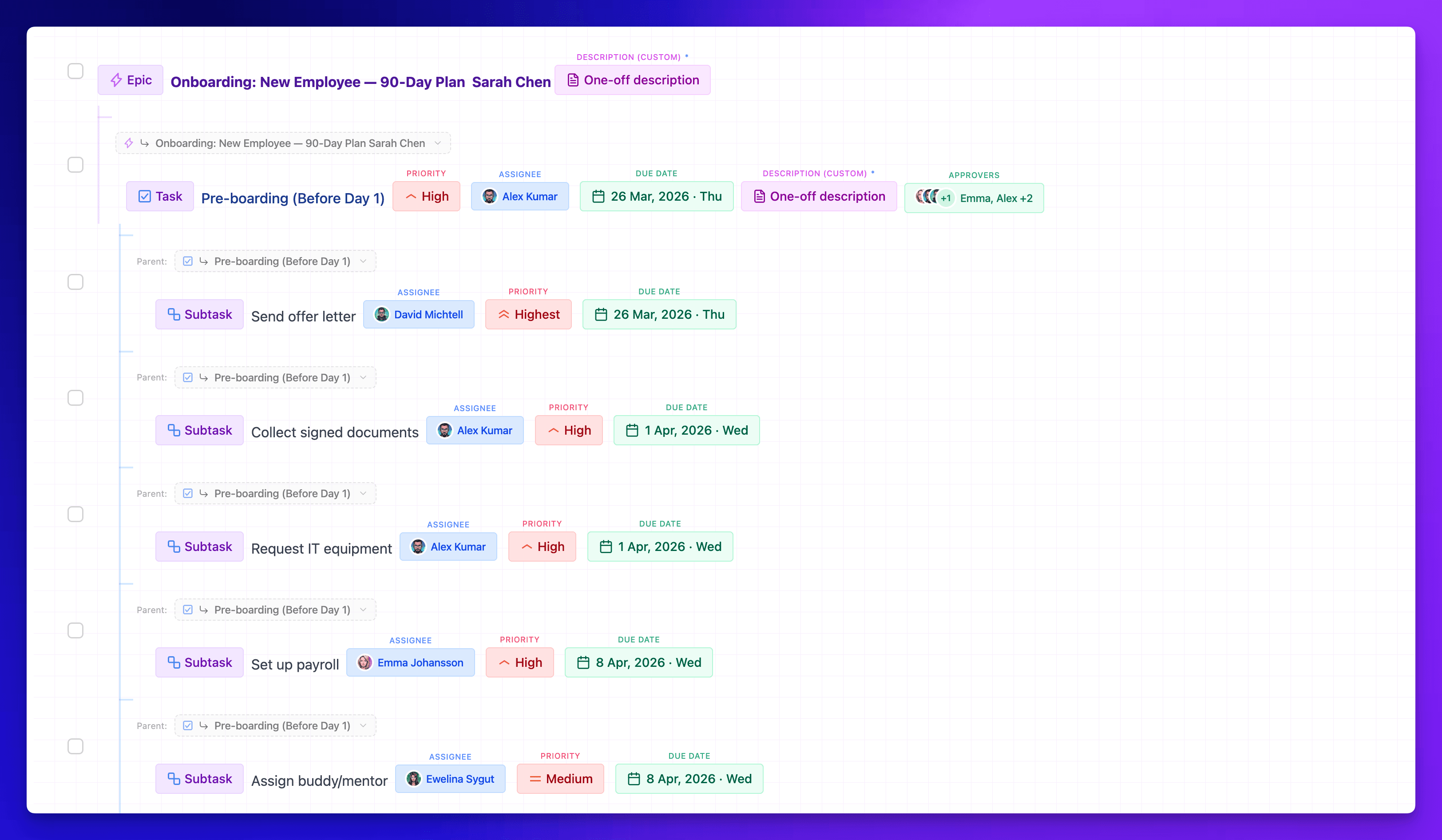
Organize tasks into a proper hierarchy using drag-and-drop. SuperTemplates supports up to 4 levels: Epic → Story → Task → Sub-task.

1

Drag to reorder

Grab the drag handle (⠿) on any row and move it up or down. The drop indicator shows where the task will land.

editor-hierarchy-step-1.png
2

Indent to create children

Drag a task slightly to the right under another task to make it a child. The issue type automatically adjusts (e.g., a Task dragged under an Epic becomes a Story).

editor-hierarchy-step-2.png
3

Collapse and expand

Click the arrow next to parent tasks to collapse or expand their children. This helps focus on one epic at a time when planning large projects.

editor-hierarchy-step-3.png
4

Multi-select and move

Select multiple tasks with Ctrl+Click or Shift+Click, then drag them all at once. They'll maintain their relative order and hierarchy.

editor-hierarchy-step-4.png

Pro tip: Use Tab to indent a task (make it a child) and Shift+Tab to outdent (move it up a level).

Bulk Actions & Smart Pills

Smart Pills are the fastest way to edit multiple tasks simultaneously. Select tasks, click a field, and change it everywhere at once.

1

Select tasks

Click the checkbox on individual rows, or use Ctrl+A to select all visible tasks. The bulk action toolbar appears at the bottom of the screen.

editor-bulk-actions-step-1.png
2

Apply Smart Pills

In the bulk toolbar, click any field (assignee, priority, labels, story points) to open the Smart Pill editor. Choose a value and it applies to all selected tasks instantly.

editor-bulk-actions-step-2.png
3

Bulk delete

Select tasks and press Delete or click the trash icon. A confirmation dialog shows how many tasks will be removed, including children.

editor-bulk-actions-step-3.png
4

Bulk move to epic

Select stories or tasks, click 'Move to Epic' in the toolbar, and choose the target epic. All selected items become children of that epic.

editor-bulk-actions-step-4.png

Pro tip: Smart Pills remember your last 5 values per field — click the clock icon to reuse recent assignments.

Part 2

AI Extraction

How AI Extraction Works

SuperTemplates uses AI to read unstructured text — meeting notes, specs, Slack threads, emails — and extract structured Jira tasks with proper hierarchy, assignees, and details.

1

Paste or type your text

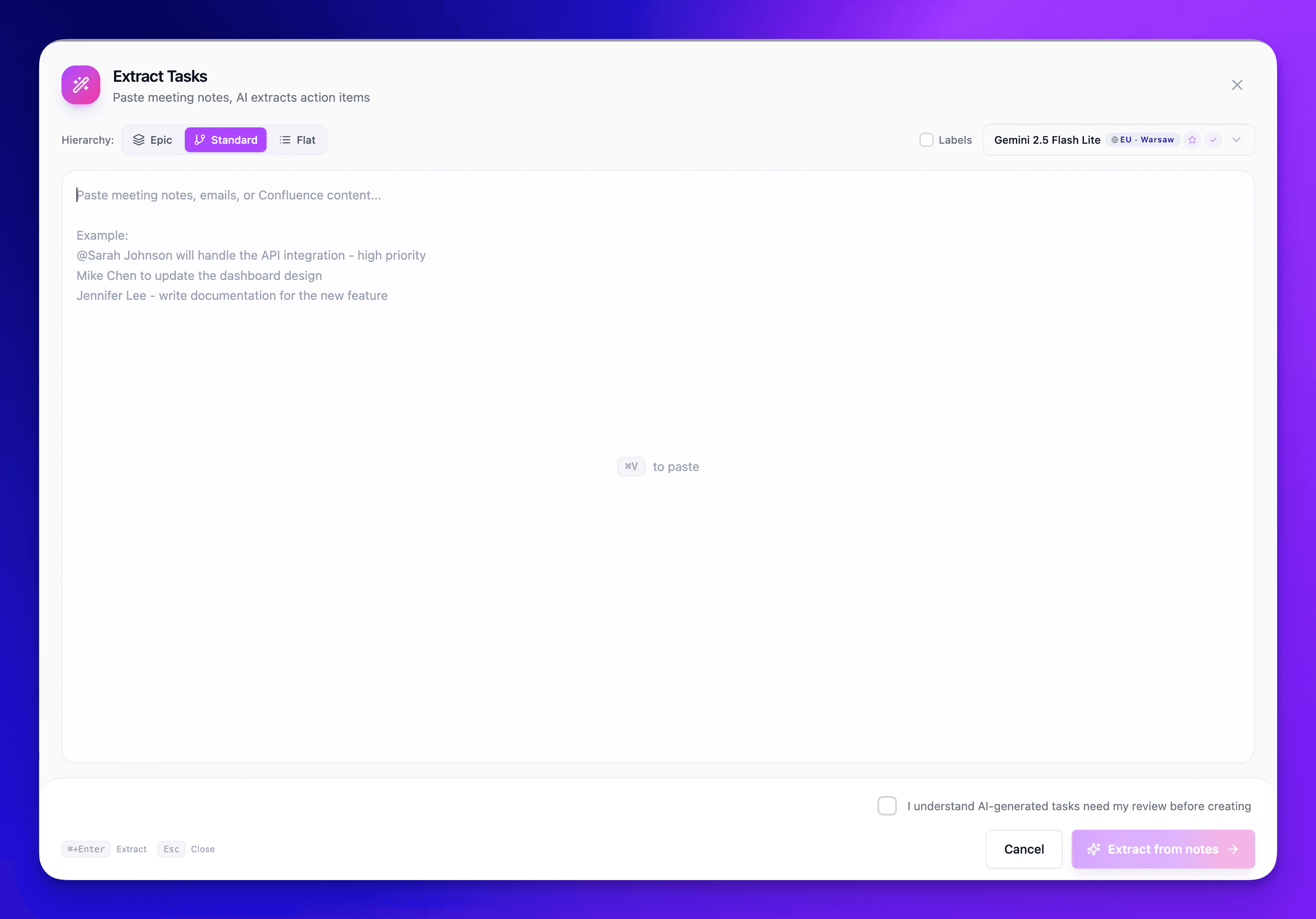
Open the AI panel by clicking the ✨ button or pressing Ctrl+Shift+A. Paste any text — meeting notes, requirements documents, Slack conversations, or even handwritten notes from a photo.

ai-overview-step-1.png
2

AI analyzes the content

The AI identifies action items, decisions, owners, deadlines, and dependencies. It understands context like "Sarah will handle the auth flow by Friday" and extracts a task assigned to Sarah with a due date.

ai-overview-step-2.png
3

Review the extracted tasks

Tasks appear in a preview panel with hierarchy, types, and fields pre-filled. Each task has a confidence indicator showing how certain the AI is about the extraction.

ai-overview-step-3.png
4

Edit and confirm

Review, modify, add, or remove tasks before confirming. Click 'Add to editor' to merge them into your task list, or 'Replace all' to start fresh with just the AI-generated tasks.

ai-overview-step-4.png

Pro tip: The AI learns from your project's existing tasks. The more you use it, the better it gets at matching your team's naming conventions and task structure.

Meeting Notes → Tasks

Turn any meeting transcript or notes into actionable Jira tasks. This is the most common use case — paste your notes and get a structured backlog in seconds.

1

Capture your meeting notes

Use any format — bullet points, paragraphs, or even raw transcript from Otter.ai, Google Meet, or Zoom. The AI handles all formats.

ai-meeting-notes-step-1.png
2

Paste into the AI panel

Open the AI panel and paste your notes. For best results, include who said what and any action items mentioned during the meeting.

ai-meeting-notes-step-2.png
3

Review the extracted tasks

The AI identifies action items, assigns them to mentioned team members (matching against your Jira users), sets priorities based on urgency language, and creates a hierarchy of epics and stories.

ai-meeting-notes-step-3.png
4

Refine and push to Jira

Adjust any tasks, add missing story points, and confirm. Click 'Create in Jira' to push all tasks to your project in one batch.

ai-meeting-notes-step-4.png

Pro tip: Include the meeting agenda or context at the top of your notes. The AI uses it to better categorize tasks into epics.

Paste Any Text

The AI isn't limited to meeting notes. Paste requirements docs, Slack threads, emails, PRDs, or even competitor feature lists to generate tasks.

1

Copy text from any source

Grab text from Google Docs, Confluence, Notion, email threads, Slack messages, PDF reports — anything with actionable content.

ai-paste-text-step-1.png
2

Use the right extraction mode

Choose between 'Action Items' (finds tasks and assignments), 'Requirements' (creates stories from specs), or 'Free-form' (let the AI decide the best structure).

ai-paste-text-step-2.png
3

Set context hints

Optionally add context like "This is a Q1 planning doc for the mobile team" to help the AI assign the right epic, labels, and components.

ai-paste-text-step-3.png

Pro tip: For Slack threads, copy the entire thread including timestamps and usernames. The AI maps Slack users to Jira users automatically.

AI Model Selection

SuperTemplates supports multiple AI models. Choose the one that fits your needs for speed, accuracy, or cost.

1

Open model settings

Click the model indicator in the AI panel toolbar (shows the current model name). The model picker opens with all available options.

ai-models-step-1.png
2

Choose a model

Select from available models — faster models for quick extraction, more capable models for complex documents with nuanced requirements.

ai-models-step-2.png
3

BYOK (Bring Your Own Key)

In Settings → AI, enter your own API key to use your organization's AI account. This removes rate limits and gives you full control over costs and data handling.

ai-models-step-3.png

Pro tip: Use the fastest model for daily standups and meeting notes, and the most capable model for quarterly planning docs and complex PRDs.

Part 3

Templates

Template System Overview

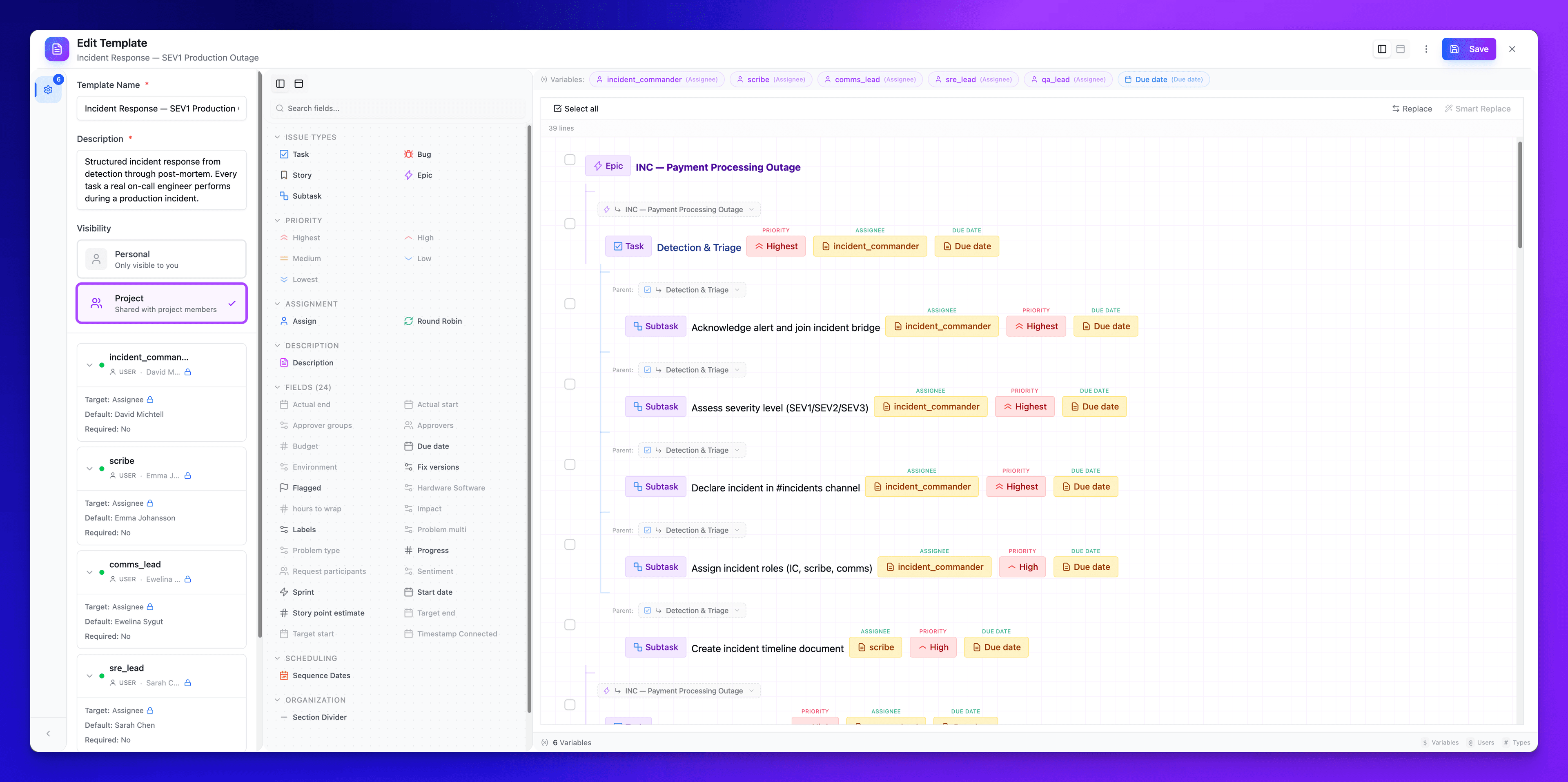
Templates are pre-built task structures you can apply instantly. Think of them as blueprints — a sprint planning template creates all the ceremony tasks, a feature launch template sets up the full workflow from spec to release.

1

Browse the template library

Click 'Templates' in the editor toolbar to open the library. Templates are organized by category: Engineering, Product, HR, Marketing, Finance, and more.

templates-overview-step-1.png
2

Preview before applying

Click any template to see its full task tree — all the tasks, hierarchy, field values, and variables it will create. Nothing is created until you confirm.

templates-overview-step-2.png
3

Apply a template

Click 'Use Template' to add all its tasks to your editor. If the template has variables (like sprint name or team lead), you'll be prompted to fill them in first.

templates-overview-step-3.png
4

Combine templates

Apply multiple templates in sequence. A sprint planning template + incident response template gives you a complete sprint setup with emergency procedures built in.

templates-overview-step-4.png

Pro tip: Star your frequently used templates for quick access. They appear in a 'Favorites' section at the top of the library.

Smart Variables

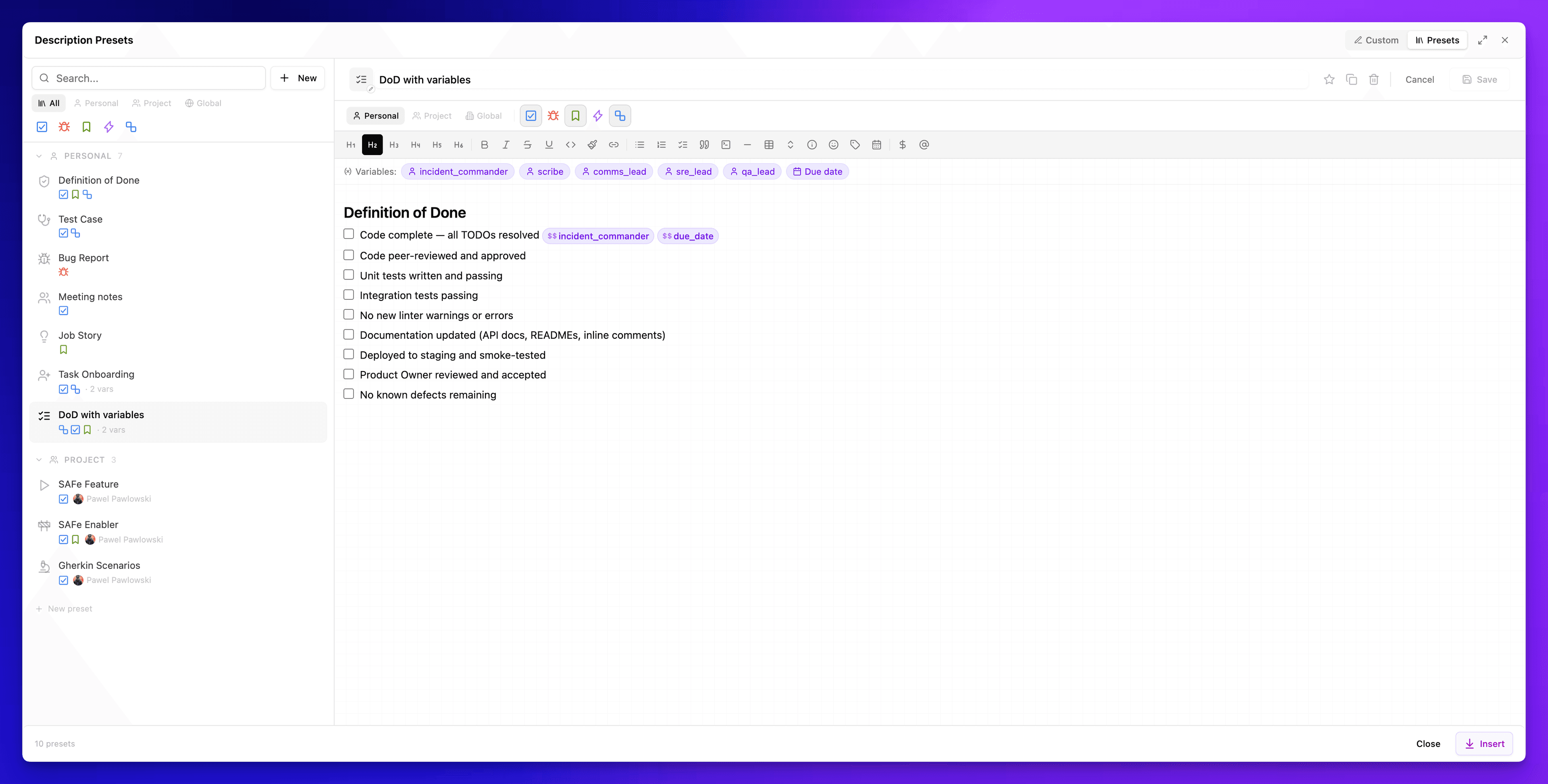
Variables make templates dynamic. Instead of hardcoding dates, names, and values, use variables that get filled in when the template is applied.

1

Understand variable types

Text variables for names and labels. Date variables with smart calculation (e.g., 'next Monday', 'sprint end + 2 days'). User variables that autocomplete from your Jira team. Select variables with predefined options.

templates-variables-step-1.png
2

Use variables in templates

In any text field, type {{variableName}} to insert a variable. It appears as a colored pill in the editor. When the template is applied, users are prompted to fill in each variable.

templates-variables-step-2.png
3

Date arithmetic

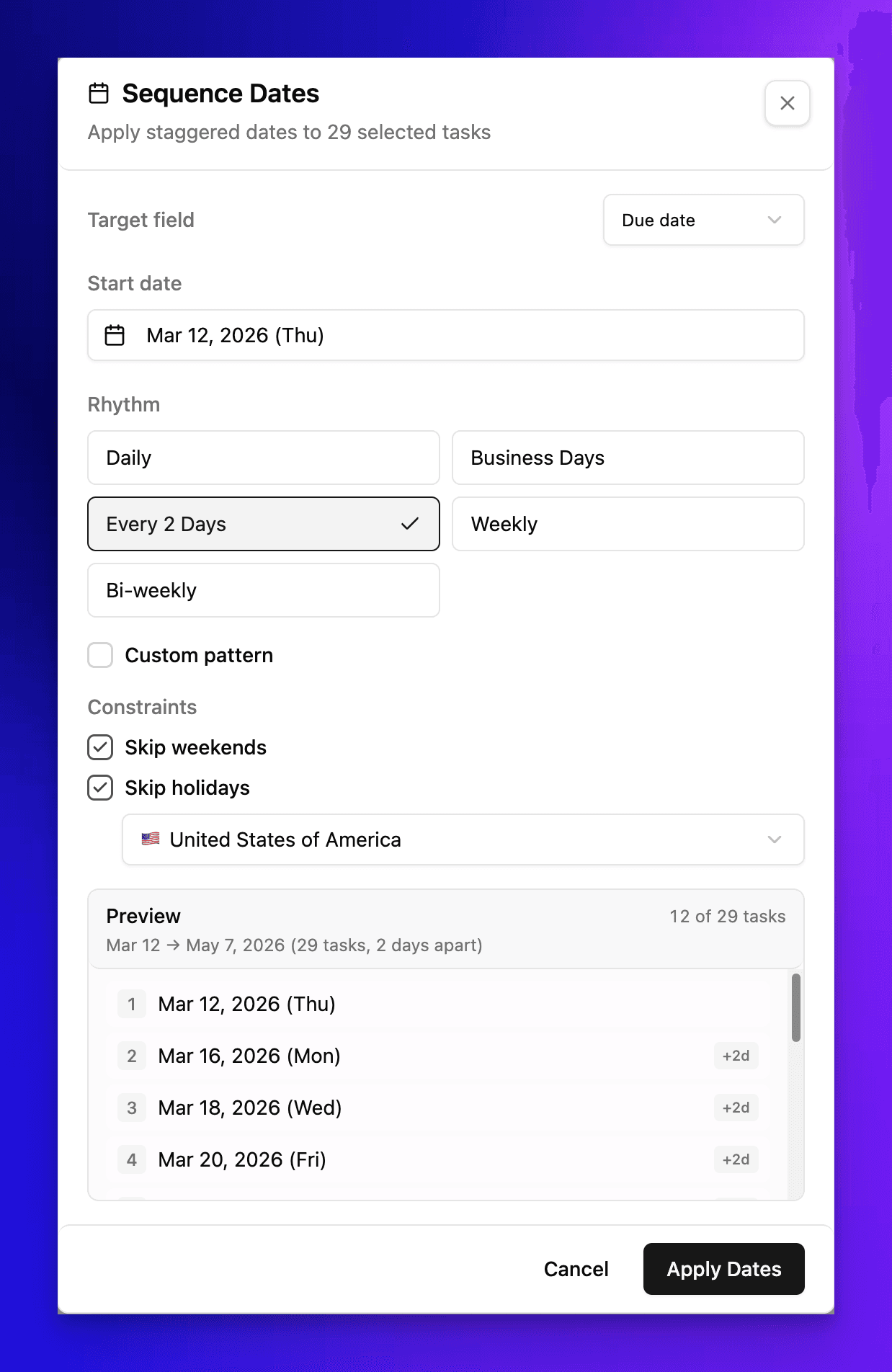
Date variables support calculations: {{sprintStart + 5 business days}}, {{releaseDate - 1 week}}, {{nextMonday}}. Business day calculations skip weekends and optionally holidays.

templates-variables-step-3.png
4

Default values and validation

Set default values for variables so users can accept them with one click. Add validation rules like 'must be a future date' or 'must be a team member'.

templates-variables-step-4.png

Pro tip: Use the {{today}} and {{currentUser}} built-in variables for tasks that should always reference the current date and the person applying the template.

Creating Your Own Templates

Build templates from scratch or save your current editor state as a reusable template. Your team's workflows deserve custom blueprints.

1

Save current tasks as template

Set up your tasks in the editor exactly how you want them. Click 'Save as Template' in the toolbar. Give it a name, category, and description. All tasks, hierarchy, and field values are captured.

templates-creating-step-1.png
2

Build from scratch

Click 'Create Template' in the template library. The template editor opens — same interface as the main editor, but with variable support enabled. Build your task tree and add variables where values should be dynamic.

templates-creating-step-2.png
3

Add variables to fields

Click the {x} button next to any field to convert its value to a variable. Name the variable, set its type, default value, and description. The same variable name used in multiple places updates everywhere.

templates-creating-step-3.png
4

Test your template

Click 'Preview' to see what the template looks like when applied. Fill in the variable form and verify the output matches your expectations.

templates-creating-step-4.png

Pro tip: Start with one of the built-in templates and customize it rather than building from scratch. It's faster and you inherit best practices.

Sharing & Team Templates

Templates can be personal (only you see them) or shared with your team. Team templates ensure everyone follows the same workflows.

1

Share with your team

Open any personal template and click 'Share'. Choose your Jira project or team to make it available to all members. Shared templates appear in the 'Team' section of the library.

templates-sharing-step-1.png
2

Set permissions

Template owners can set who can edit vs. who can only use the template. 'Use only' prevents accidental changes to established workflows.

templates-sharing-step-2.png
3

Version history

Every change to a shared template is tracked. Click 'History' to see all versions, compare changes, and revert to a previous version if needed.

templates-sharing-step-3.png

Pro tip: Create a 'Team Standards' category with your org's official templates. Pin it to the top of the library so new team members find it first.

Advanced Template Features

Power features for teams who want maximum automation from their templates.

1

Conditional tasks

Add conditions to tasks so they only appear when certain variables match. For example, a 'Security Review' task that only appears when the 'Requires Security Review' variable is set to Yes.

templates-advanced-step-1.png
2

Auto-assignment rules

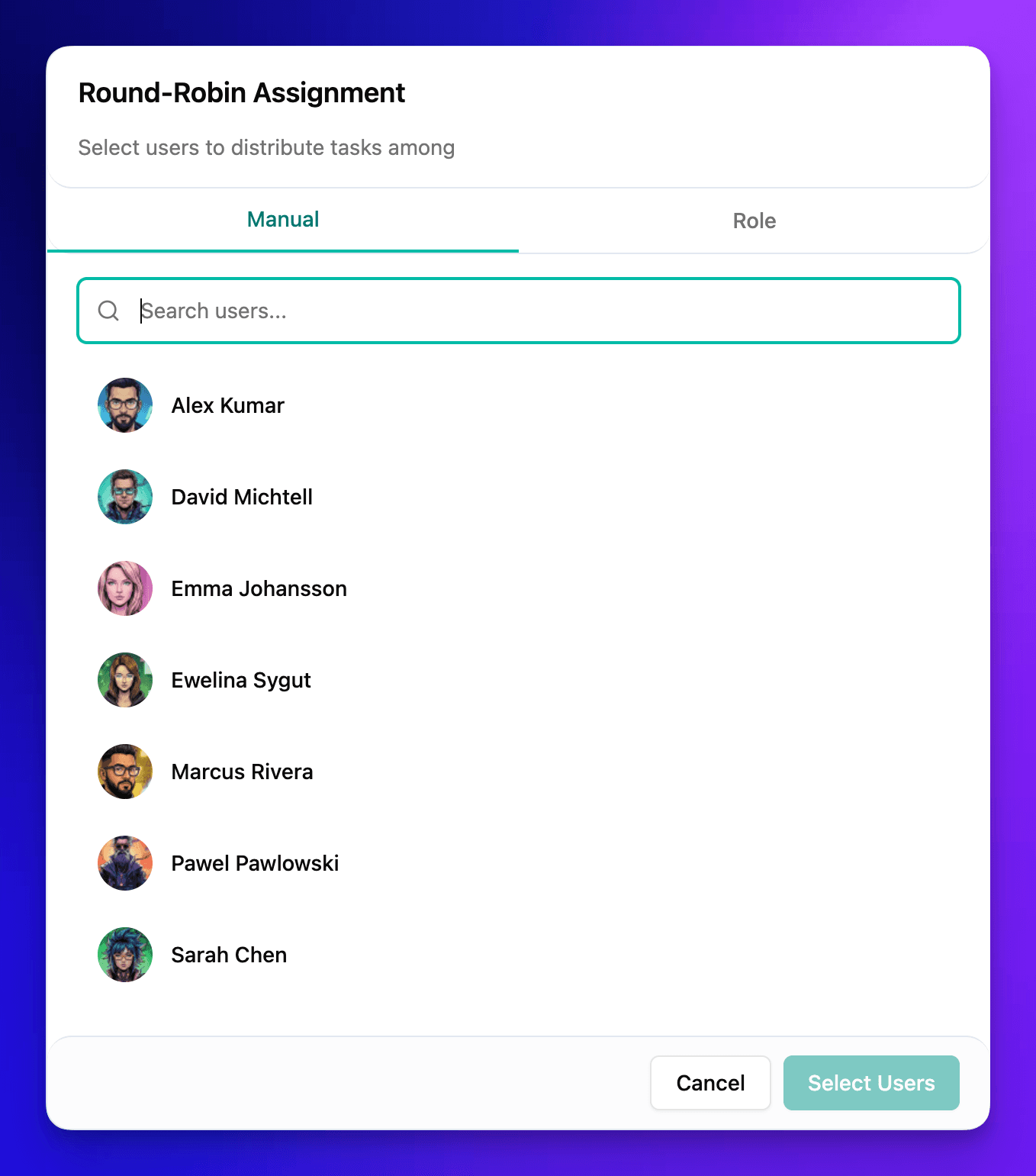
Set rules like 'assign QA tasks to the QA lead for this sprint' or 'rotate on-call tasks through the team roster'. Variables can reference Jira user groups.

templates-advanced-step-2.png
3

Template chains

Link templates together in a sequence. When one template's tasks are completed, the next template automatically activates. Perfect for multi-phase projects.

templates-advanced-step-3.png
4

Import/export templates

Export templates as JSON for backup or sharing across Jira instances. Import templates from other teams or from the SuperTemplates community library.

templates-advanced-step-4.png

Pro tip: Check the community template library for templates shared by other SuperTemplates users. Great for discovering workflows you haven't considered.

Part 4

Admin & Settings

Setting Up API Keys

SuperTemplates can use your own AI API keys (BYOK) for full control over costs, rate limits, and data residency. Configure keys in the admin panel to unlock unlimited AI extraction.

1

Open admin settings

Go to your Jira project settings → Apps → SuperTemplates → Admin. You need Jira admin or project admin permissions to access this panel.

admin-api-keys-step-1.png
2

Navigate to API Keys

Click the 'API Keys' tab. You'll see slots for each supported AI provider — add keys for one or multiple providers.

admin-api-keys-step-2.png
3

Add your API key

Paste your API key and click 'Verify'. SuperTemplates sends a small test request to confirm the key works. Keys are encrypted at rest and never leave your Jira instance.

admin-api-keys-step-3.png
4

Set the default model

Once verified, choose which model to use by default for your team. Individual users can override this in their personal preferences if you allow it.

admin-api-keys-step-4.png

Pro tip: Using BYOK removes all rate limits from AI extraction. Your team can generate as many tasks as your API plan allows.

Usage Statistics

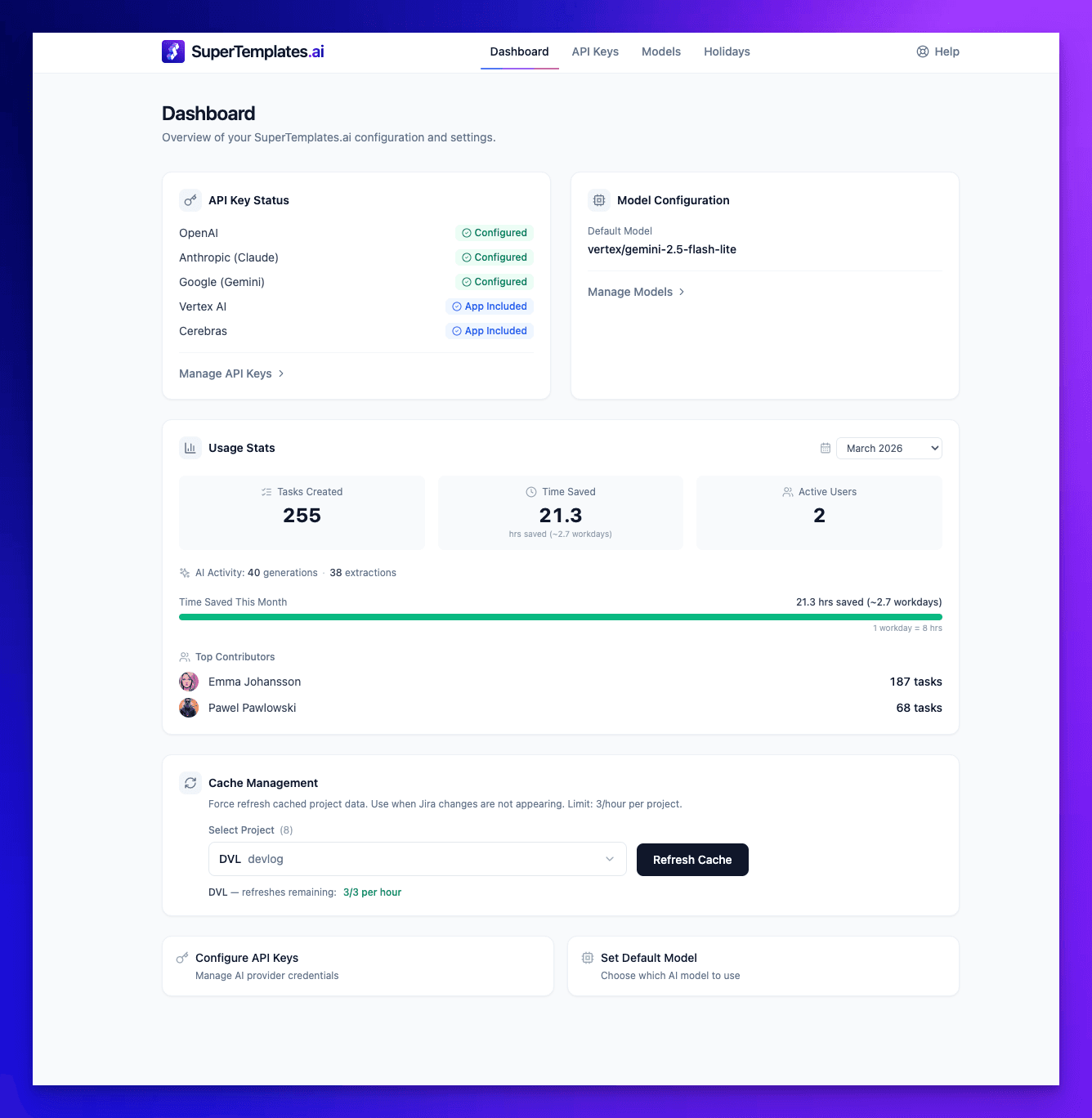
Track how your team uses SuperTemplates — tasks created, AI extractions run, templates applied, and time saved. Use these stats to measure ROI and identify power users.

1

View the dashboard

Go to Admin → Statistics. The dashboard shows key metrics: total tasks created, AI extractions this month, most-used templates, and active users.

admin-stats-step-1.png
2

Filter by date range

Use the date picker to view stats for any period — this sprint, this quarter, or all time. Compare periods to see adoption trends.

admin-stats-step-2.png
3

Per-user breakdown

Click 'By User' to see individual usage. Identify champions who can help onboard others, and team members who might need training.

admin-stats-step-3.png
4

Export reports

Click 'Export' to download usage data as CSV. Use it for internal reporting, license justification, or tracking time-saved metrics.

admin-stats-step-4.png

Pro tip: The 'Time Saved' metric estimates hours saved based on average manual task creation time vs. SuperTemplates generation time.

Refreshing Data

SuperTemplates caches your Jira project configuration (fields, users, workflows) for performance. When you make changes in Jira, refresh the cache so SuperTemplates picks them up.

1

When to refresh

Refresh after adding or modifying custom fields, changing workflows, adding new team members, or updating issue type schemes. SuperTemplates also auto-refreshes every 24 hours.

admin-refresh-step-1.png
2

Quick refresh

Click the refresh icon (↻) in the editor toolbar. This syncs users, fields, and issue types from your Jira project. Takes 2–5 seconds.

admin-refresh-step-2.png
3

Full resync from admin

Go to Admin → Data → 'Full Resync'. This rebuilds the entire cache including workflow transitions, permissions, and field configurations. Use this after major Jira configuration changes.

admin-refresh-step-3.png

Pro tip: If a custom field isn't showing in the editor, a quick refresh almost always fixes it.

Setting Defaults

Configure default values for your team — default issue type, default assignee rules, required fields, and AI behavior. Good defaults mean less manual work for every task created.

1

Default issue type

Go to Admin → Defaults → Issue Type. Choose what new tasks default to (Story, Task, Bug). This applies when users add rows manually or when AI can't determine the type.

admin-defaults-step-1.png
2

Default field values

Set defaults for priority, labels, components, story points, and custom fields. For example, default priority to 'Medium' and default component to your team's name.

admin-defaults-step-2.png
3

Required fields

Mark fields as required before tasks can be pushed to Jira. This prevents incomplete tasks from being created — e.g., require story points and assignee for all Stories.

admin-defaults-step-3.png
4

AI behavior settings

Configure how the AI generates tasks: default hierarchy depth, whether to auto-assign based on context, confidence threshold for extraction, and language preferences.

admin-defaults-step-4.png

Pro tip: Set sensible defaults but don't over-constrain. The goal is to reduce clicks, not block your team from overriding when needed.

Ready to try it?

Install SuperTemplates from the Atlassian Marketplace and start generating tasks in under 2 minutes.